

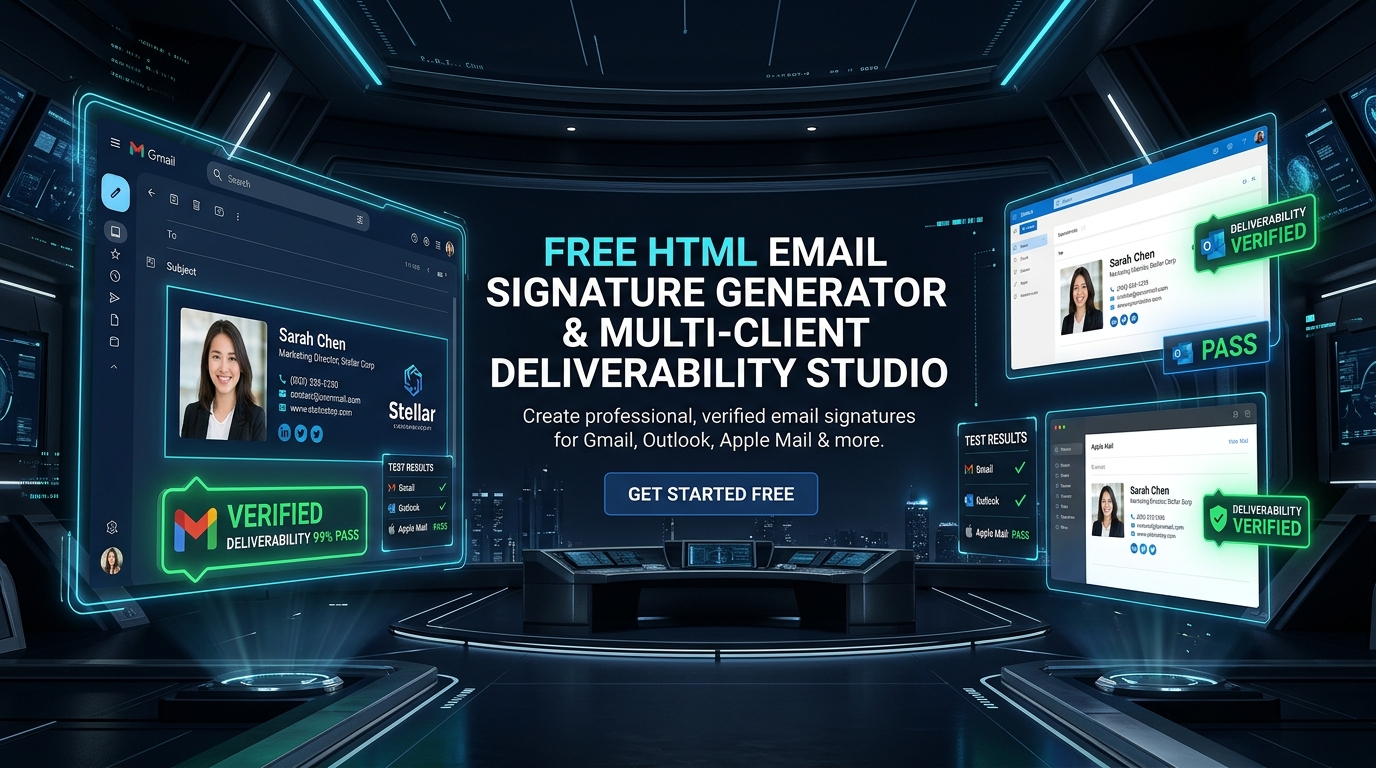
Free HTML Email Signature Generator
Build a sleek, deliverability-safe HTML email signature in 60 seconds. Formatted with strict inline CSS tables to render flawlessly in Outlook Desktop (Word HTML engine), Gmail, Apple Mail, and Thunderbird without bloated tracking scripts, image clipping, or spam triggers. Copy directly as formatted Rich Text with one click or export raw HTML tables.
Design Your Signature
Create a professional signature that renders identically everywhere. Table-based layout with inline CSS (the only structure Gmail clips correctly and Outlook respects), no remote scripts or tracking weight to trip spam filters — styled, previewed, and copied in one click.
How to paste your generated signature into the most popular email clients:
- In the generator above, click the green Copy as Rich Text button.
- Open Gmail in your browser and click the Settings (gear icon) in the top right → click See all settings.
- On the General tab, scroll down to the Signature section.
- Click + Create new and give your signature a name (e.g., Work Signature).
- Click into the text editor box and press
Cmd + V(Mac) orCtrl + V(Windows) to paste your formatted signature. - Under Signature defaults, set your new signature for For new emails use and On reply/forward use.
- Scroll to the bottom of the page and click Save Changes.
- Click Copy as Rich Text in the workbench above.
- Outlook Desktop (Windows/Mac): Go to
File → Options → Mail → Signatures(orOutlook → Settings → Signatureson Mac). - Click New, enter a name, click into the signature edit area, and paste with
Ctrl + V. - Outlook on the Web (Office 365 / Outlook.com): Click
Settings (gear icon) → Mail → Compose and reply → Email signature. - Paste directly into the signature box. Ensure Automatically include my signature on new messages is checked.
- Click Save.
- Click Copy as Rich Text above.
- Open Apple Mail on your Mac and open
Mail → Settings... → Signatures tab. - Select the email account in the left column and click the + button to create a new signature.
- Crucial Step: Uncheck
Always match my default message fontat the bottom of the window (this prevents Apple Mail from overriding your table font). - Click into the signature pane and press
Cmd + Vto paste your signature. - Drag your signature to the designated email account in the left sidebar to assign it.
- Click Copy HTML in the workbench above.
- Open Thunderbird and go to
Tools → Account Settings(or click the hamburger menu → Account Settings). - Select your email account in the left sidebar.
- In the Signature text section, check the box for
Use HTML. - Paste your raw HTML code into the signature textarea with
Ctrl + V. - Click OK or close settings to apply.
Why Email Signatures Require Strict Table-Based Architecture
Unlike modern web development where CSS Grid and Flexbox dominate, HTML email rendering remains constrained by desktop email clients. Most notably, Microsoft Outlook Desktop (2016, 2019, 2021, and Office 365) still relies on the Microsoft Word HTML rendering engine (MSO), which completely ignores flexbox, css grids, floats, negative margins, and external stylesheets.
Every element is laid out inside zero-padding, zero-border <table>, <tr>, and <td> elements with explicit inline styles. This guarantees identical pixel-level layout whether viewed on iPhone Apple Mail or an enterprise corporate Outlook 2019 workstation.
Using display: flex or display: grid causes Outlook desktop to collapse the entire signature vertically, placing photos above names, overlapping phone numbers, and breaking multi-column layouts into disjointed text fragments.
Headshots and company logos must be hosted on public, SSL-secured HTTPS servers with explicit width, height, and border="0" attributes. Never use base64 data URIs or private Google Drive links.
Embedding images as inline base64 data strings inflates signature payload from 2 KB to 150+ KB. SpamAssassin assigns heavy spam penalties to heavy base64 payloads, and Gmail automatically clips the email with “[Message clipped] View entire message”.
Cross-Client Rendering & Feature Support Matrix
How AutoSMTP’s generated HTML tables render across the top 6 consumer and enterprise email clients:
| Email Client | Rendering Engine | HTML Tables | Inline SVG Icons | Custom Web Fonts | Copy Rich-Text Support |
|---|---|---|---|---|---|
| Google Gmail (Web) | Blink (Chrome) | 100% Full | Full Support | Stripped (Fallback to Arial) | 1-Click Direct Paste |
| Outlook Desktop (Windows) | Word MSO | 100% Full | Fallback Labels / PNG | Fallback to System Font | 1-Click Direct Paste |
| Outlook on the Web (365) | Blink / WebKit | 100% Full | Full Support | Safe Font Fallbacks | 1-Click Direct Paste |
| Apple Mail (macOS) | WebKit (Safari) | 100% Full | Full Support | Full Support | 1-Click Direct Paste |
| Apple Mail (iOS / iPad) | WebKit Mobile | 100% Full | Full Support | Full Support | Settings Paste |
| Mozilla Thunderbird | Gecko | 100% Full | Full Support | Full Support | HTML Box Paste |
Eliminate Shared-Pool IP Bounces & ESP Contact Taxes
Commercial ESPs throttle volume and charge punishing subscriber markups. AutoSMTP delivers private, dedicated bare-metal MTA infrastructure engineered for enterprise high-inbox placement.
Dedicated PowerMTA & KumoMTA clusters provisioned on bare metal with flat predictable pricing and zero contact fees.
Real-time Google Postmaster telemetry keeps spam rates under 0.1% while safely ramping new IPv4 subnets.
Native socket interceptors drop hard bounces instantly to protect sending domains from spam traps and ISP blacklists.
End-to-end rDNS/PTR alignment, 2048-bit DKIM, strict DMARC enforcement, and VMC BIMI integration.
Ready to Scale Without Contact Limits?
Deploy private bare-metal email infrastructure with dedicated IP allocation and automated IP warming starting at flat $97/mo.
Frequently Asked Questions About HTML Email Signatures
Key capabilities
- Gmail/Outlook/Apple-compatible markup
- Inline CSS only — no scripts
- Dark-mode-safe palettes
- One-click copy.